

Once you know what your Drive needs, the next step is finding the right files. This part covers the My Drive page, the filters in the Detailed analysis tab, selecting multiple files and the actions on each row.
The My Drive page
Click My Drive in the left menu to browse your Drive by folder, just like on drive.google.com but with the sharing status of every file.
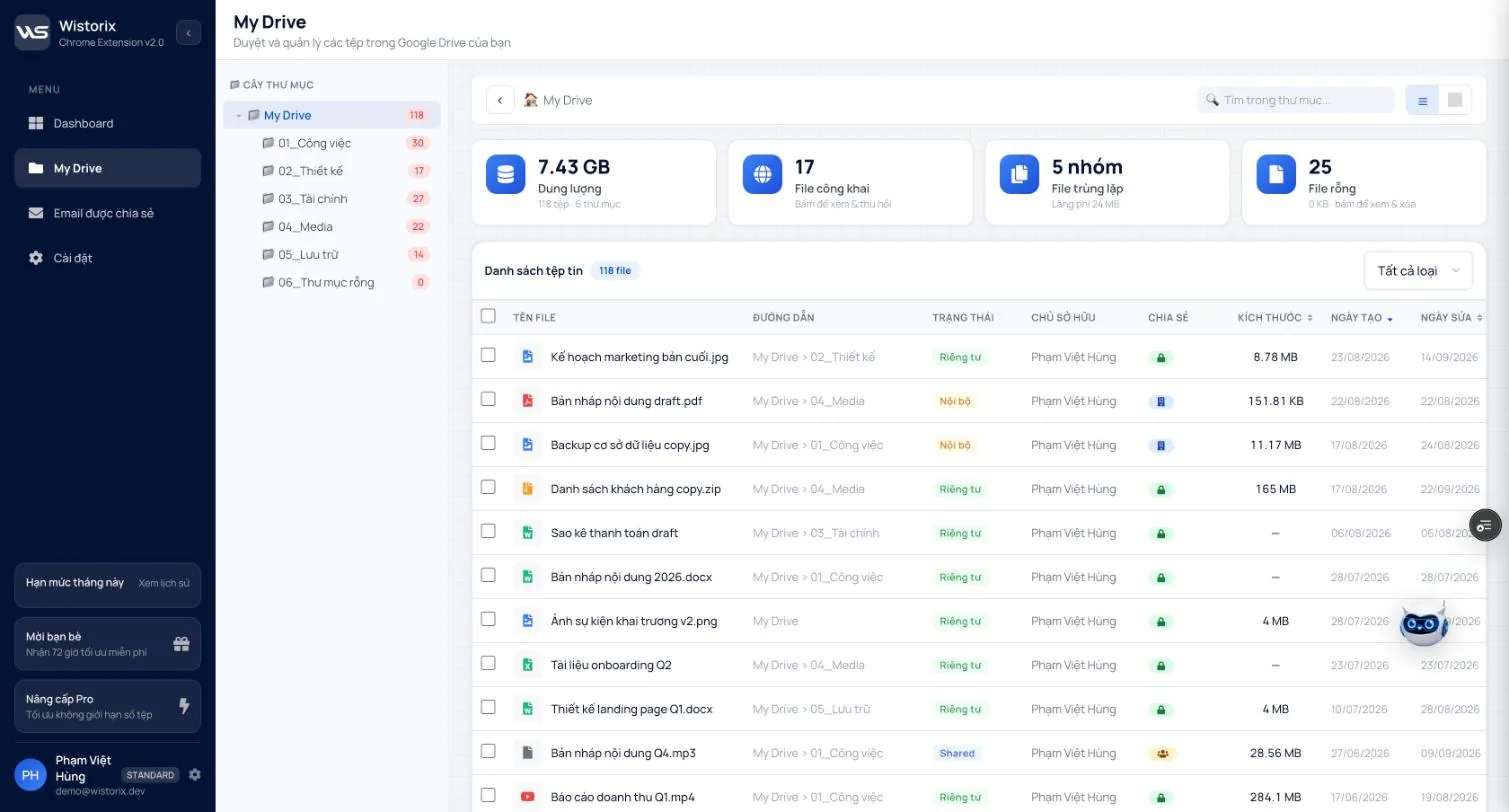
- Folder tree on the left, with the number of files in each folder. Click a folder to see its files.
- Path bar with a back button, a Search in folder... (Tìm trong thư mục...) box and a toggle between list view and grid view.
- Four summary cards for the folder you are viewing: Storage (with the number of files and folders), Public files, Duplicate files (number of groups and wasted storage) and Empty files.
Click a card to quickly filter the list by it. For example, the Public files card reads Click to view & revoke (Bấm để xem & thu hồi).
Read the file list
| Column | What it means |
|---|---|
| File name | Click the name to open the File preview panel |
| Path | The folder that holds the file, for example My Drive › 02_Design |
| Status | Public (Công khai), Private (Riêng tư), Internal (Nội bộ): shared within the organization, or Shared: shared with specific emails |
| Owner | The person who owns the file |
| Sharing | Icons or emails of the people the file is shared with. Click to see the full list |
| Size, Created, Modified | Click a column header to sort ascending or descending |
The All types (Tất cả loại) dropdown in the right corner filters by file type. The list is paginated at 15 files per page, with page buttons at the bottom.
Filters in the Detailed analysis tab
The Detailed analysis (Phân tích chi tiết) tab on the Dashboard puts every file in your Drive into one list, with a search box for names or paths and four filter rows:
| Filter row | Options |
|---|---|
| Status | Public · Private · Internal · Shared |
| File type | Images · Video · PDF · Docs · Zip |
| Size | < 10MB · 10-100MB · > 100MB |
| Rarely used files | 90 days · 180 days · 1 year |
The filter rows stack. For example, choose Video and > 100MB to see large videos, then add 1 year (1 năm) to narrow it to large videos nobody has touched in a long time.
A quick recipe for freeing up storage
- Filter by > 100MB, then click the Size column so the largest files come first.
- Add Video or Zip: these two types usually take up the most space.
- Add 180 days (180 ngày) to leave out files that are in use.
- Click each file name to preview it, and tick the files you do not need.
- Click Download (Tải xuống) if you want to keep a copy on your computer, then Move to Trash (Vào thùng rác).
To find out which files are largest before you open Wistorix, read the article on finding large files in Google Drive or the Google Drive storage analyzer page.
Select multiple files and use the bulk action bar
Tick the box at the start of a row to select a file. As soon as you do, a dark bulk action bar appears at the bottom of the screen with the number of selected files and these buttons:
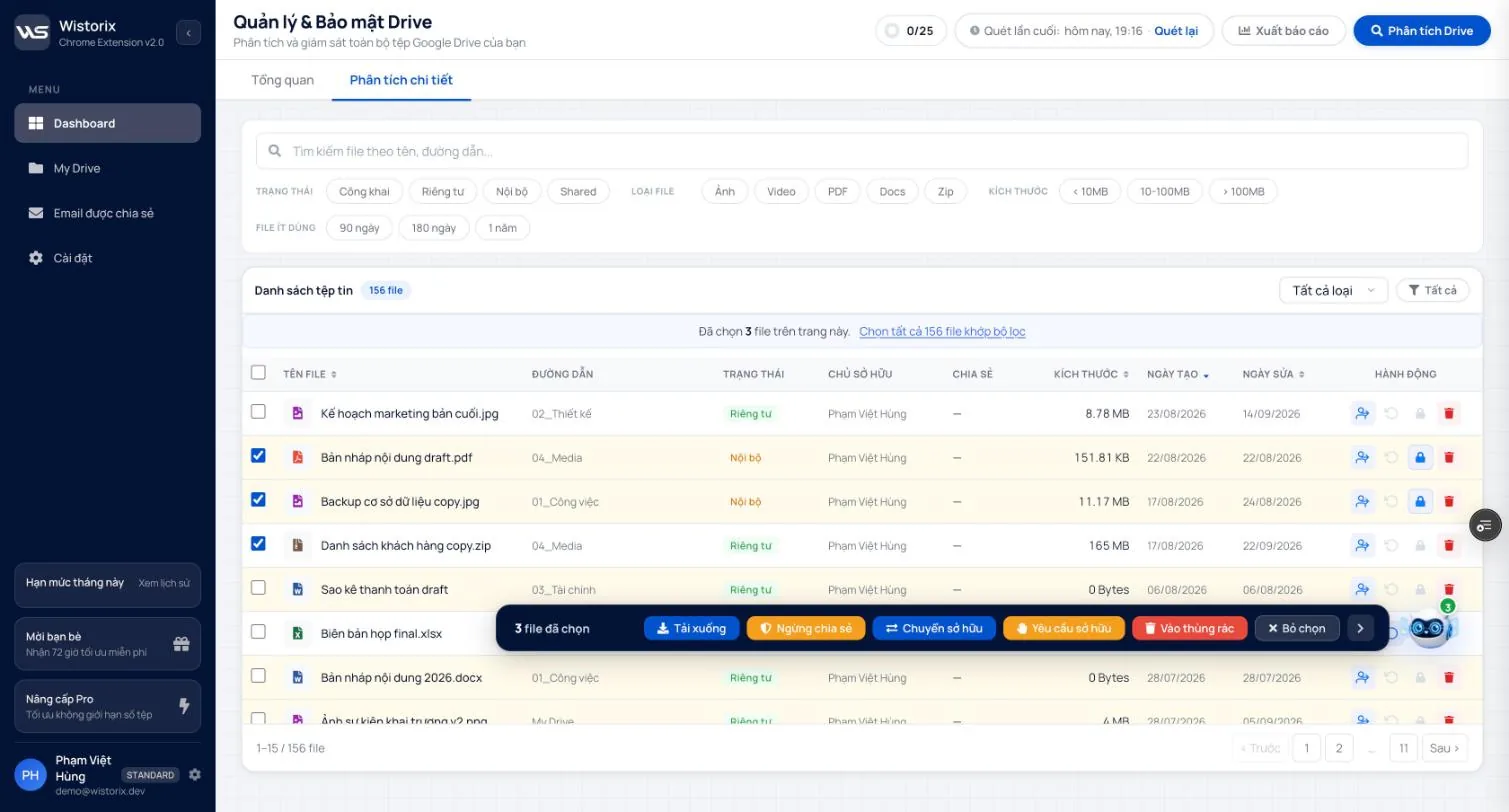
- Download: downloads the selected files to your computer.
- Stop sharing (Ngừng chia sẻ): makes the files private (Part 07).
- Transfer ownership (Chuyển sở hữu) and Request ownership (Yêu cầu sở hữu): see Part 09.
- Move to Trash: moves the files to the Google Drive Trash.
- Deselect (Bỏ chọn): clears the selection.
Once you tick the select-all box on a page, a line above the list reads 15 files selected on this page (Đã chọn 15 file trên trang này) with a Select all N files matching the filter (Chọn tất cả N file khớp bộ lọc) link that extends the selection to every page.
Actions on each row
The Actions (Hành động) column at the end of each row has four icons. Hover over an icon to see its name:
- Transfer ownership to someone else
- Request ownership back to you
- Stop sharing: makes the file private, so only people you granted access can open it
- Delete file (moves it to the Trash)
A faded icon means the action does not apply to that file, for example Stop sharing on a file that is already private.
Frequently asked questions
Can I combine several filter conditions?
Yes. Filter rows stack, for example Video plus larger than 100MB plus 1 year.
How do I select every file that matches the filter?
Tick the select-all box on one page, then click the Select all N files matching the filter link above the list.
Applies to: Wistorix Dashboard v2.0 (Chrome Extension v2.0) and Drive Widget 2.1, updated Oct 9, 2026. Screenshots and button names come from this version, whose interface is currently in Vietnamese. When a new Wistorix version ships, we write a new guide and record the changes in the changelog.