

These three groups rarely cause security risks, but they clutter your Drive and pull your score down. This part shows you how to filter each group, decide what to delete or keep, and clean up safely.
The three file groups Wistorix collects for you
| Group | What it is | Where to find it |
|---|---|---|
| Files 180+ days old | Files not edited in more than 180 days | Old 180+ days card (Overview), Rarely used files filter (Detailed analysis) |
| Empty files | 0 KB files, usually created by mistake or from a failed upload | Empty files card (My Drive) |
| Files outside folders, orphaned files | Files sitting loose at the root of My Drive or that have lost their parent folder | Files outside folders card (Overview) |
All three groups add to the deductions in the Junk · orphaned · outside folders (Rác · mồ côi · ngoài thư mục) and Files 180+ days old (File cũ 180+ ngày) groups of the security score (how the score works).
Filter old files before you optimize
The Old 180+ days (Cũ 180+ ngày) card has an Optimize (Tối ưu) button that handles the whole group. An old file is not the same as a useless file: a contract signed last year, tax records and event photos are still worth keeping. Review the list first:
- Open the Detailed analysis (Phân tích chi tiết) tab on the Dashboard.
- In the Rarely used files (File ít dùng) row, choose 90 days (90 ngày), 180 days (180 ngày) or 1 year (1 năm).
- Add the Size (Kích thước) filter > 100MB to see the old files that take up the most space.
- Click the Modified (Ngày sửa) column to sort, so the oldest files come first.
- Tick the files you are sure you do not need, then choose an action on the bulk action bar at the bottom of the screen.
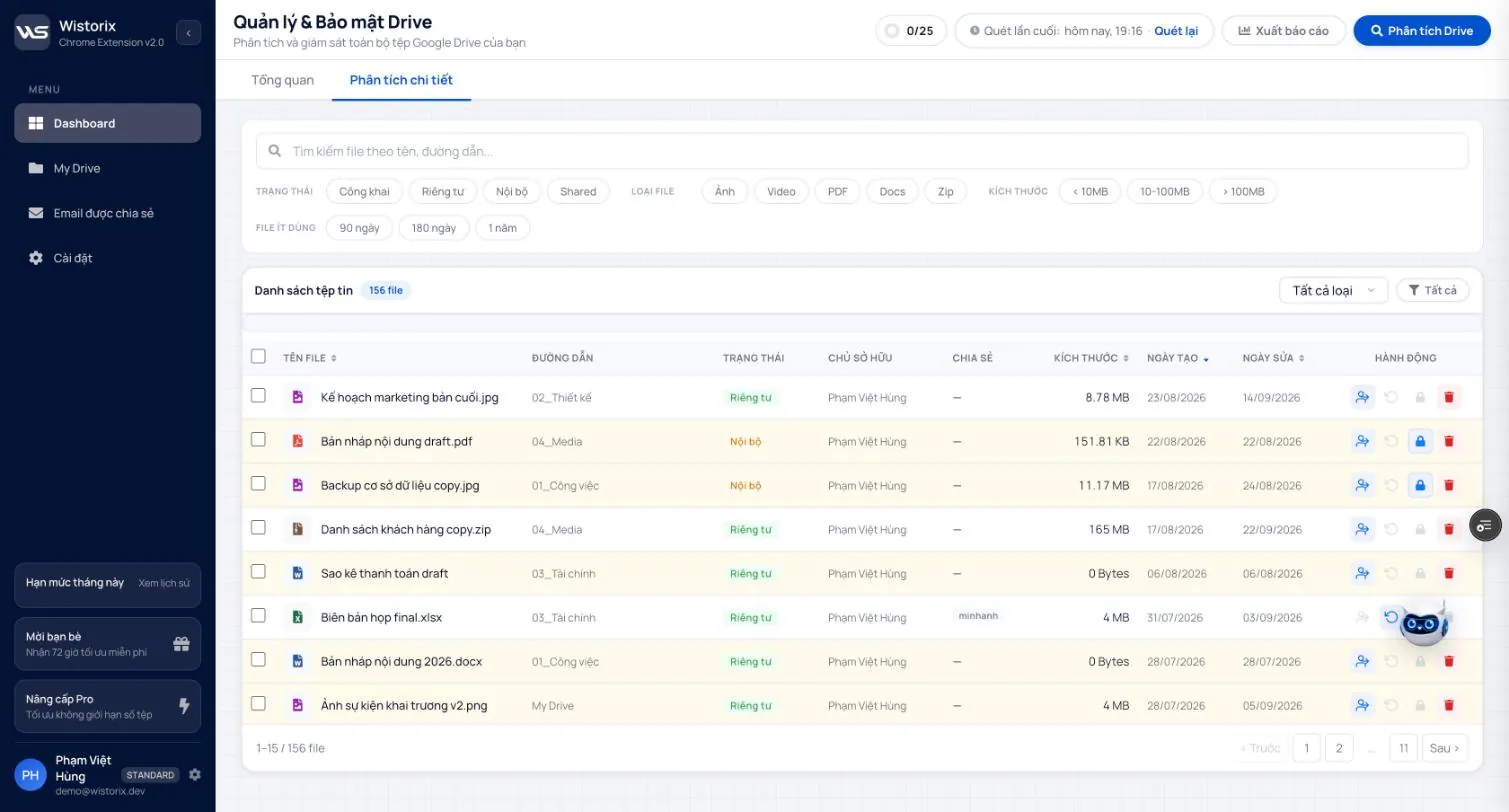
The default "recently updated" threshold is 180 days. You can change it to 30, 90 or 365 days in Settings (Cài đặt) → General configuration (Cấu hình chung) (Part 12).
Old files: delete, transfer or keep
- Delete: drafts that already have a final version, temporary exports, raw video that has already been edited.
- Download, then delete: documents you need to archive but do not need on Drive. The Download (Tải xuống) button is on the bulk action bar.
- Transfer ownership: files from a project that has been handed to someone else (Part 09).
- Keep: legal records and accounting documents. Put them in one archive folder so they are easy to skip at the next scan.
Detailed suggestions by file type are in the article on old files in Google Drive.
Delete empty files
- Open My Drive in the left menu.
- Click the Empty files (File rỗng) card (it reads 0 KB · click to view & delete). The list now shows only 0 KB files.
- Check the file type icon next to each name: a newly created Google Docs file with nothing typed in it also shows 0 KB, and it may be a template someone plans to use.
- Select all or tick individual files, then click Move to Trash (Vào thùng rác).
The files go to the Google Drive Trash, where you can restore them within 30 days.
Organize files outside folders
The Files outside folders (Files ngoài thư mục) card on the Overview tab counts standalone data files that are not in any folder. These files are not dangerous, but they are hard to find and easy to share by mistake. Open the list, delete the files you do not need, then open the rest with the Open in Drive (Mở trên Drive) button in the File preview panel and drag them into the right folder.
Orphaned files are files that have lost their parent folder. This often happens when you create a file inside a folder someone shared with you and that folder is later deleted. The file still counts against your storage. How to find and re-file them is covered in the article on files with no folder in Google Drive.
Do not empty the Trash right away
Your storage only drops for good once files leave the Trash. Even so, wait a few days to be sure you do not need to restore anything before you empty it. Wistorix never empties the Trash on its own. Read more: how the Google Drive Trash works.
Frequently asked questions
Should I delete every file older than 180 days?
No. Many old files are still worth keeping, such as contracts or receipts. Filter and review the list first, and only delete files you are sure you do not need.
Where do I change the 180-day threshold?
In Settings, on the General configuration tab, under the number of days that counts as recently updated: 30, 90, 180 or 365 days.
Applies to: Wistorix Dashboard v2.0 (Chrome Extension v2.0) and Drive Widget 2.1, updated Oct 9, 2026. Screenshots and button names come from this version, whose interface is currently in Vietnamese. When a new Wistorix version ships, we write a new guide and record the changes in the changelog.