

Everything in Wistorix starts with a Drive analysis. This part shows you how to run it, read the scanning screen, view details for each file and plan regular rescans.
Run a Drive analysis
- Open the Dashboard and click Analyze Drive (Phân tích Drive) in the top right corner. The first time you sign in, Wistorix runs this step for you.
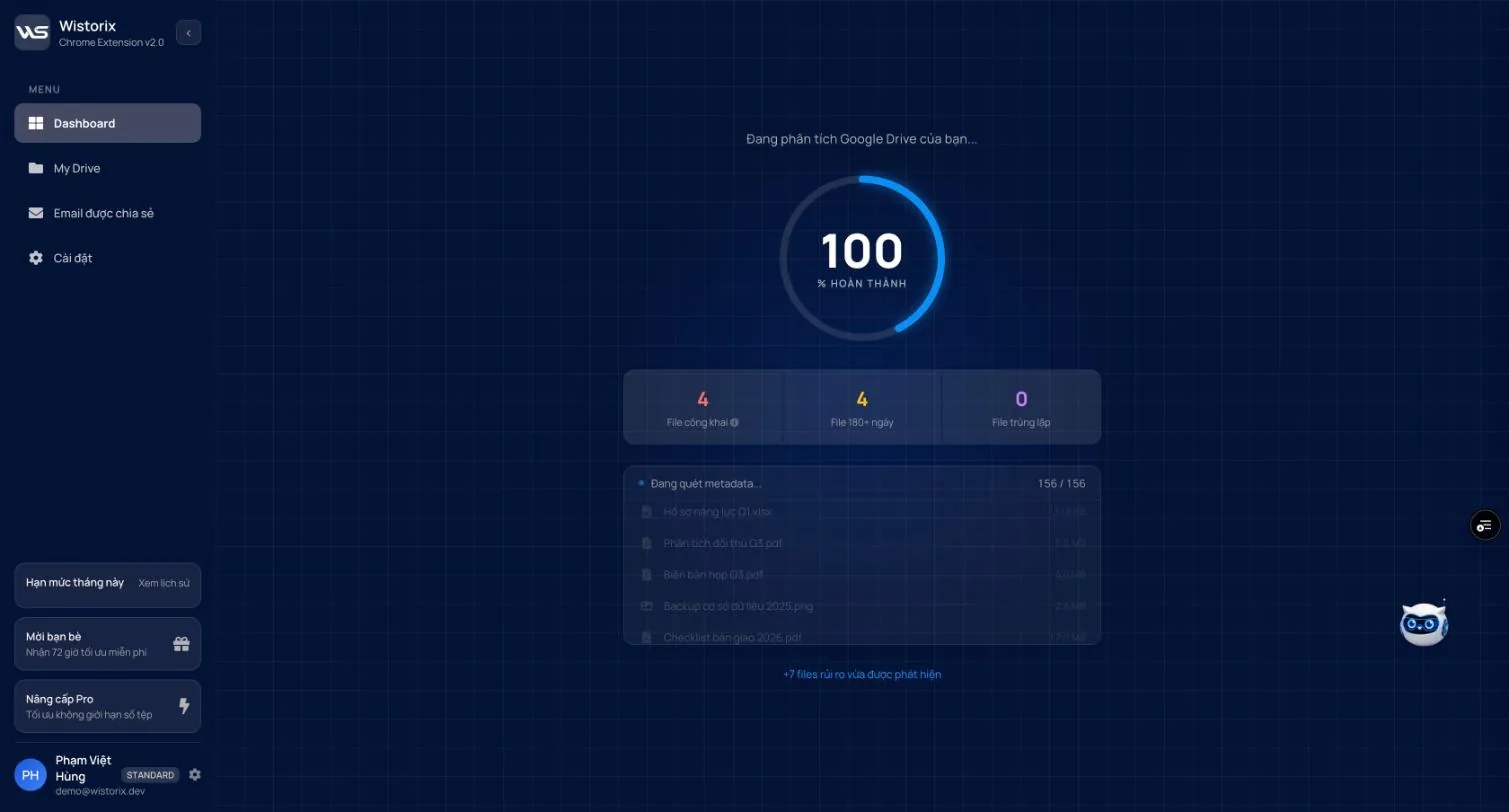
- The screen switches to analysis mode with the message Analyzing your Google Drive... (Đang phân tích Google Drive của bạn...) and a progress ring that counts up in percent.
- Keep the Wistorix tab open until the progress ring reaches 100%.
- When it finishes, a Drive analysis complete! (Phân tích Drive thành công!) notification appears on the right and the Dashboard loads the new results.
Read the scanning screen
- Three counters go up as the scan runs: Public files, Files 180+ days old and Duplicate files.
- Scanning metadata... (Đang quét metadata...) with the number of files scanned out of the total, for example 156 / 156. Below it are the names and sizes of the files just processed.
- The last line reports how many more risky files were just found.
Wistorix only reads metadata (name, size, owner, sharing permissions, modified date). File contents are never downloaded, so scan speed depends on the number of files, not on how much storage they use.
How long a scan takes
A personal Drive with a few hundred files usually finishes in about a minute. A Drive with tens of thousands of files takes a few minutes. You do not need to do anything while you wait, just keep the tab open.
Note: if you close the tab partway through, the scan stops. Open Wistorix again and click Analyze Drive to run it again.
Scan again after cleaning up
The top bar always shows Last scanned (Quét lần cuối) with a time, for example today, 19:23. Click Scan again (Quét lại) after each cleanup session so your security score and counters reflect your Drive as it is now.
Scanning and viewing results are always free, with no limit on how many times you run them, and they never count toward your monthly optimization limit.
What to do after the scan
- Read your security score and the Points deducted column (Part 02).
- Open the Detailed analysis (Phân tích chi tiết) tab to see the full file list with filters (Part 06).
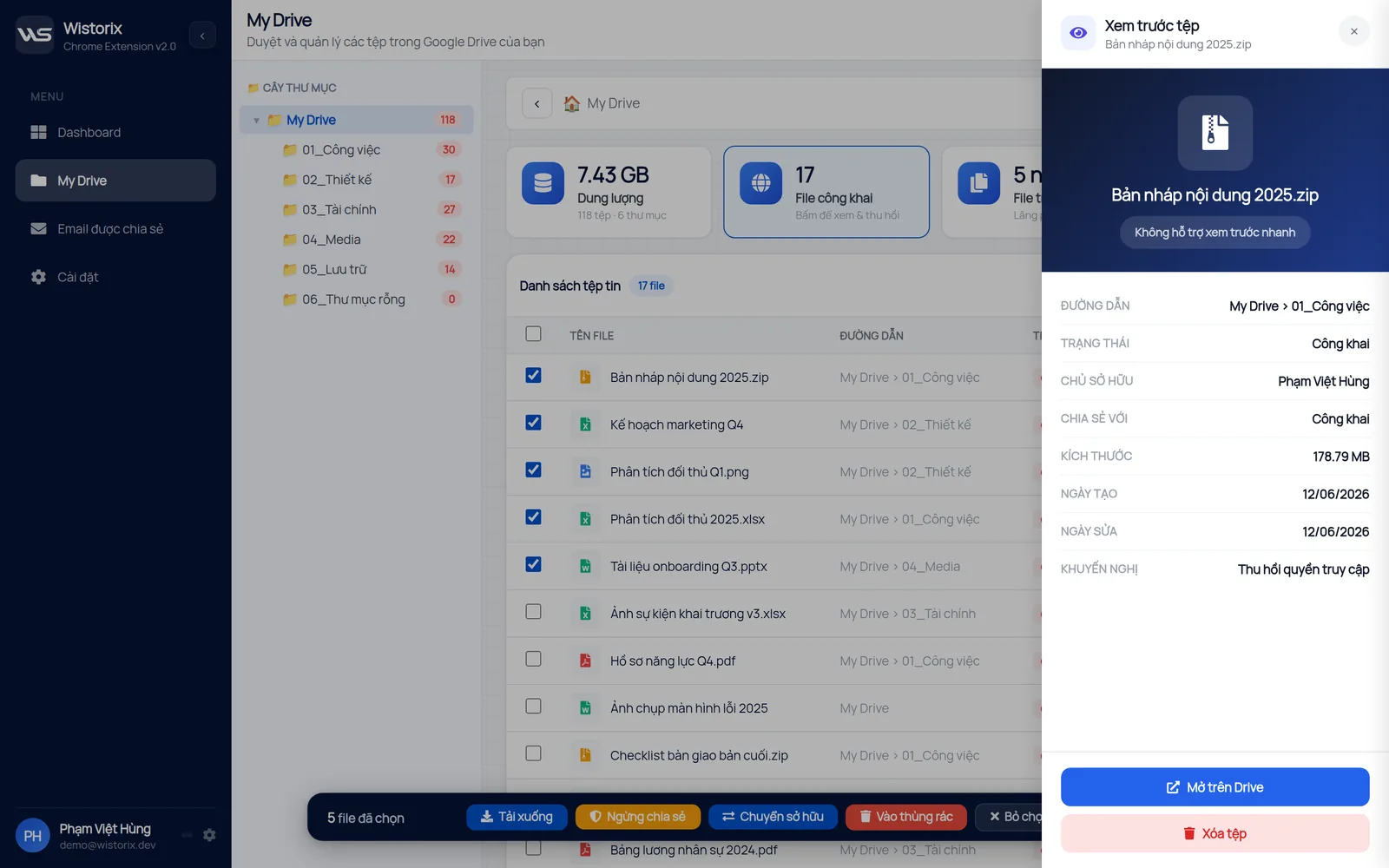
- Click any file name to open the File preview (Xem trước tệp) panel: path, status, owner, people with access, size, created date and modified date, plus the Open in Drive (Mở trên Drive) and Delete file (Xóa tệp) buttons.
Scan on a regular schedule
The first scan always has the most to do. From the second one on, each month only brings what is new. Tie your scan to a moment you already have: the start of the month, the end of a project, the day someone leaves the team. The reasons and a suggested schedule are in the article on regular Drive scans.
Automatic Drive analysis on a schedule, with risk alerts, already has a switch in Settings but is still being finished (coming soon).
Frequently asked questions
Does scanning change anything in my Drive?
No. Scanning only reads file management details. Changes only happen when you choose an action and confirm it.
How long does the first scan take?
A Drive with a few hundred files usually finishes in about a minute. A Drive with tens of thousands of files takes a few minutes.
Does scanning again use optimization credits?
No. Scanning and viewing results are free, with no limit on how many times you run them.
Applies to: Wistorix Dashboard v2.0 (Chrome Extension v2.0) and Drive Widget 2.1, updated Oct 9, 2026. Screenshots and button names come from this version, whose interface is currently in Vietnamese. When a new Wistorix version ships, we write a new guide and record the changes in the changelog.