

This part shows you how to find every public file, choose which to close first, stop sharing one file or many at once, and revoke public links across your whole Drive.
What public files are in Wistorix
Wistorix marks a file as Public (Công khai) when its sharing is set to Anyone with the link. Whoever has the link, including people outside your company or anyone in a group chat where the link was pasted, can open it without signing in with the right account. This group carries the highest weight (40) in the security score.
The other statuses are: Private (Riêng tư): only the owner and invited people. Internal (Nội bộ): open to people in your Google Workspace organization. Shared: shared with specific email addresses.
Find public files
- Overview: the Public card (labeled High risk) in the Needs attention area. Click Revoke access (Thu hồi quyền).
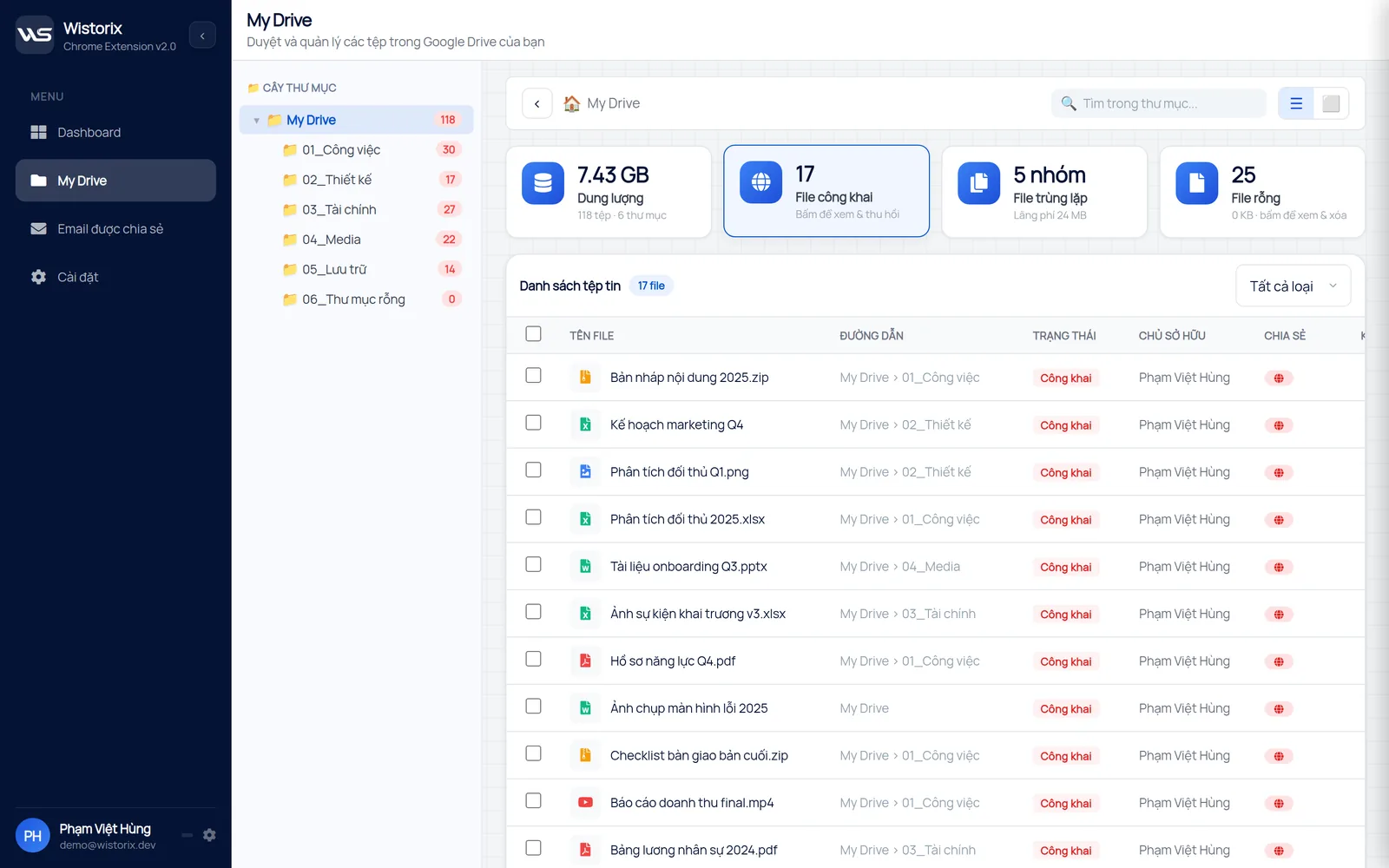
- My Drive: the Public files (File công khai) card, marked Click to view and revoke. Click it to filter the list for the folder you are viewing.
- Detailed analysis: in the Status row, choose Public.
- Shared emails: the anyone-with-link row groups every file that is open by link (Part 08).
Which files to close first
Not every public file is a mistake. A press photo kit or a product brochure may need to stay open. Close these first:
- Files whose names suggest sensitive data: contracts, payroll, bank statements, customer lists, HR records.
- Public files that allow editing: strangers can change or delete the content.
- Large files: the security score weighs severity by size, so large files pull the score down more.
- Files not edited in a long time: old links have usually spread to many places.
Stop sharing one file or many
- Filter the list by Public status.
- For one file: click the lock icon in the Actions column (Stop sharing, make the file private).
- For many files: check them, then click Stop sharing (Ngừng chia sẻ) on the bulk action bar.
- The Confirm action (Xác nhận hành động) dialog shows the number of files again. Click Confirm (Xác nhận).
- Click Rescan (Quét lại) to see your new security score.
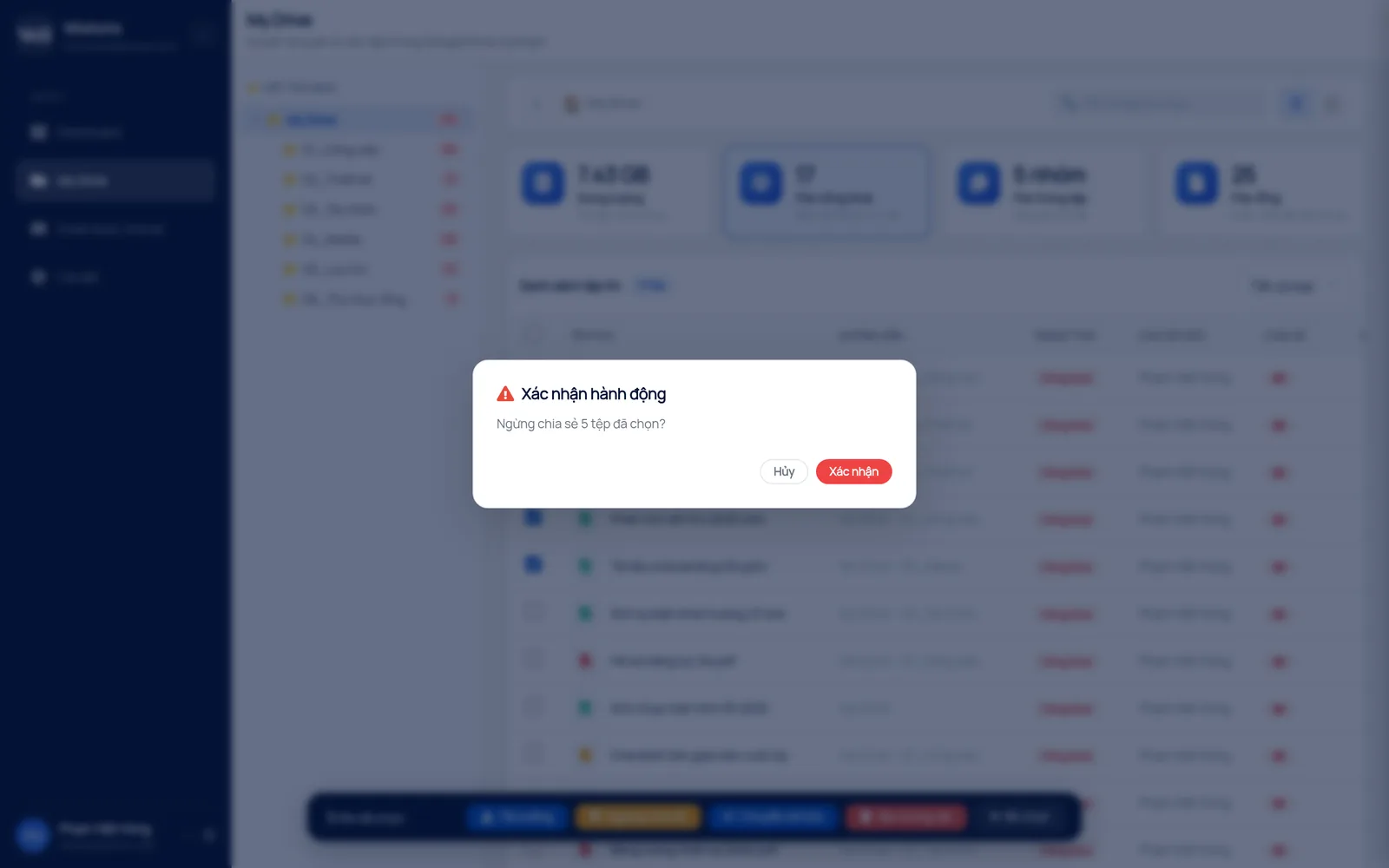
What Stop sharing does: it turns off access for anyone with the link. People invited by email keep the access they had. To remove a specific person too, use the Shared emails page (Part 08).
Revoke public links across your whole Drive
On the Shared emails (Email được chia sẻ) page, the Bulk revoke (Thu hồi hàng loạt) button opens a scope picker:
- Entire Drive (Toàn bộ Drive): revokes every public link across your Drive.
- By specific folder (Theo thư mục cụ thể): revokes only inside the folder you choose.
- By email list (Theo danh sách email): removes access for specific emails from all files.
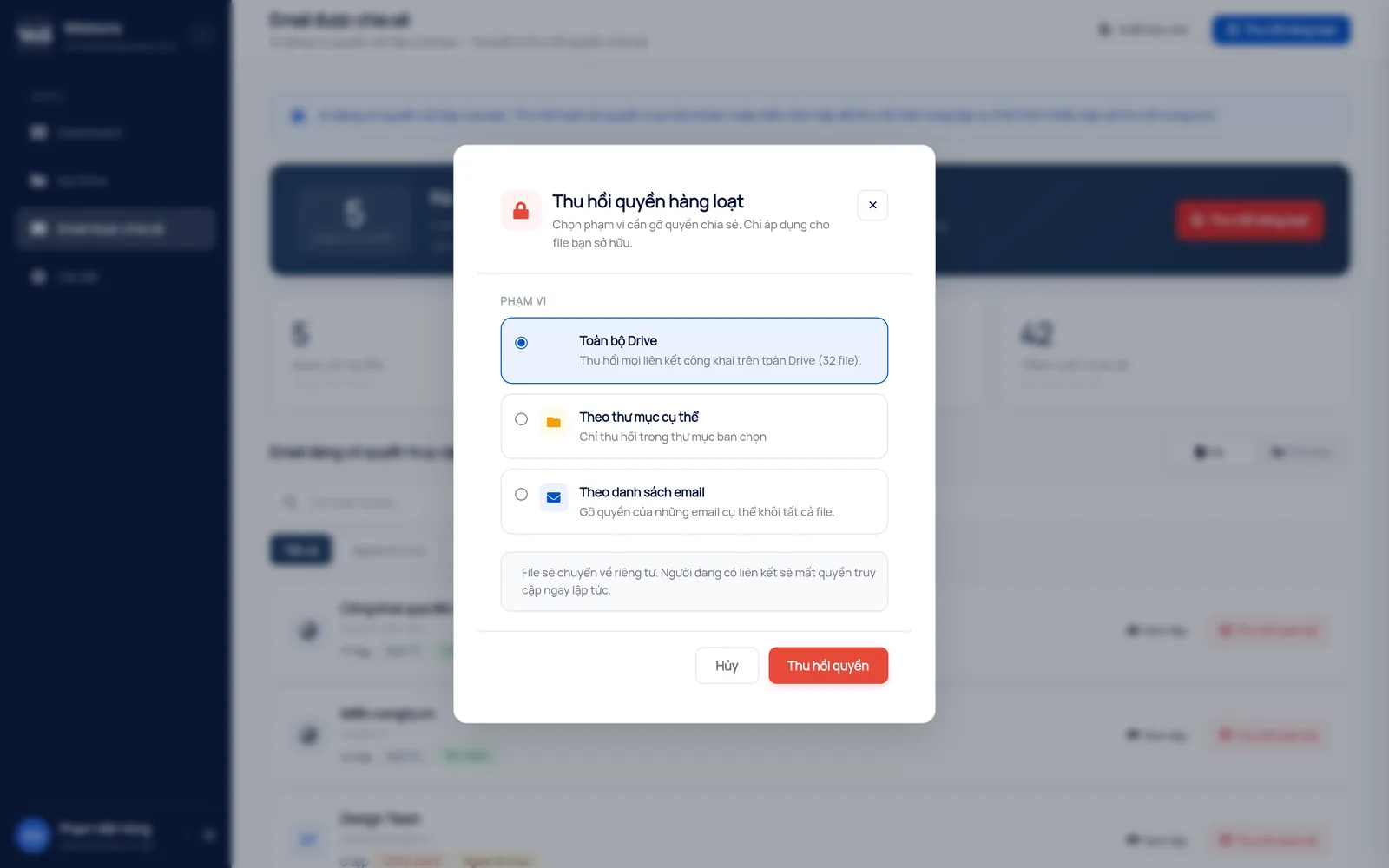
Think before choosing Entire Drive: links posted on a website, in emails to clients or in training materials will stop working right away. Google Drive does not notify the people using those links. If you need to reopen a file, you have to turn sharing back on file by file.
After you close a link
- Send the file again to the people who really need it by inviting them by email. You can set an access expiration in Google Drive.
- For files you share outside your organization often, see the principles in how to share Google Drive files safely.
- Rescan regularly to catch new public files.
To find and revoke public links without an extension, read find and revoke publicly shared Google Drive files.
Frequently asked questions
Does stopping sharing remove people invited by email?
No. Stopping sharing only turns off access for anyone with the link. People invited by email keep their access.
Are people using the link notified?
No. Google Drive does not notify people using the link. They simply cannot open it anymore.
Applies to: Wistorix Dashboard v2.0 (Chrome Extension v2.0) and Drive Widget 2.1, updated Oct 9, 2026. Screenshots and button names come from this version, whose interface is currently in Vietnamese. When a new Wistorix version ships, we write a new guide and record the changes in the changelog.