

Duplicate files are the fastest way to win back storage without losing anything. This part explains how Wistorix detects duplicates, how to use the Compare duplicates dialog and what to check before you delete.
How Wistorix identifies duplicate files
Wistorix matches files by content and size, using the data checksum that Google Drive provides for each file. Every copy in a group is a 100% content match, and file names are ignored. That means Q2 meeting minutes.xlsx and Customer list final.xlsx can still land in the same group if they are really one file that was renamed.
The reverse is also true: two files with the same name but different content are not treated as duplicates. You do not have to worry about deleting a version that was edited.
Google Docs, Sheets and Slides files do not have a checksum like regular files. How to handle copies of these files is covered in the article on duplicate files in Google Drive.
Find the duplicate groups
There are three ways in:
- On the Overview tab, the Duplicates (Trùng lặp) card in the Needs attention area. The card shows the number of groups, for example 7 groups.
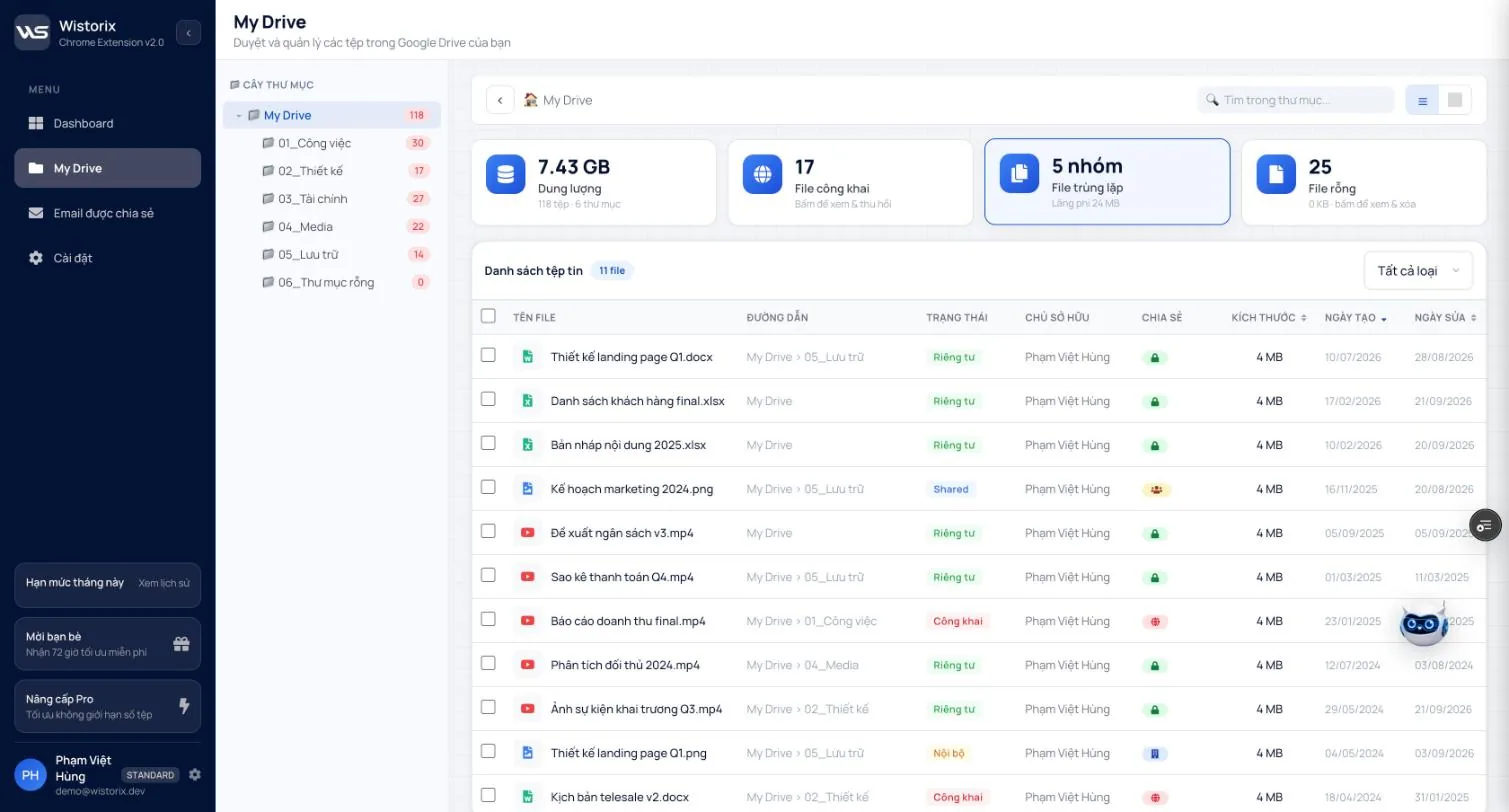
- On the My Drive page, the Duplicate files (File trùng lặp) card shows the number of groups and the wasted storage. Click the card to filter the list down to duplicates only.
- When you click Compare (So sánh), a summary notification appears on the right, for example Found 7 duplicate file groups (17 files).
Compare duplicates before deleting
- On the Duplicates card, click Compare. Wistorix opens the duplicate group that wastes the most storage.
- The Compare duplicates (So sánh bản trùng) dialog shows each copy as a card: name, size, created date, owner and full path.
- One copy is marked Original (Bản gốc) and has no delete button. The other copies have a Delete this copy (Xóa bản này) button.
- Check the paths to decide which copy to keep: the copy in an active project folder is usually the one to keep, while a copy in an archive folder or outside any folder is usually the extra.
- Click Delete this copy on each extra copy. The last line updates the number of copies left.
- Click Done (Xong) to close.
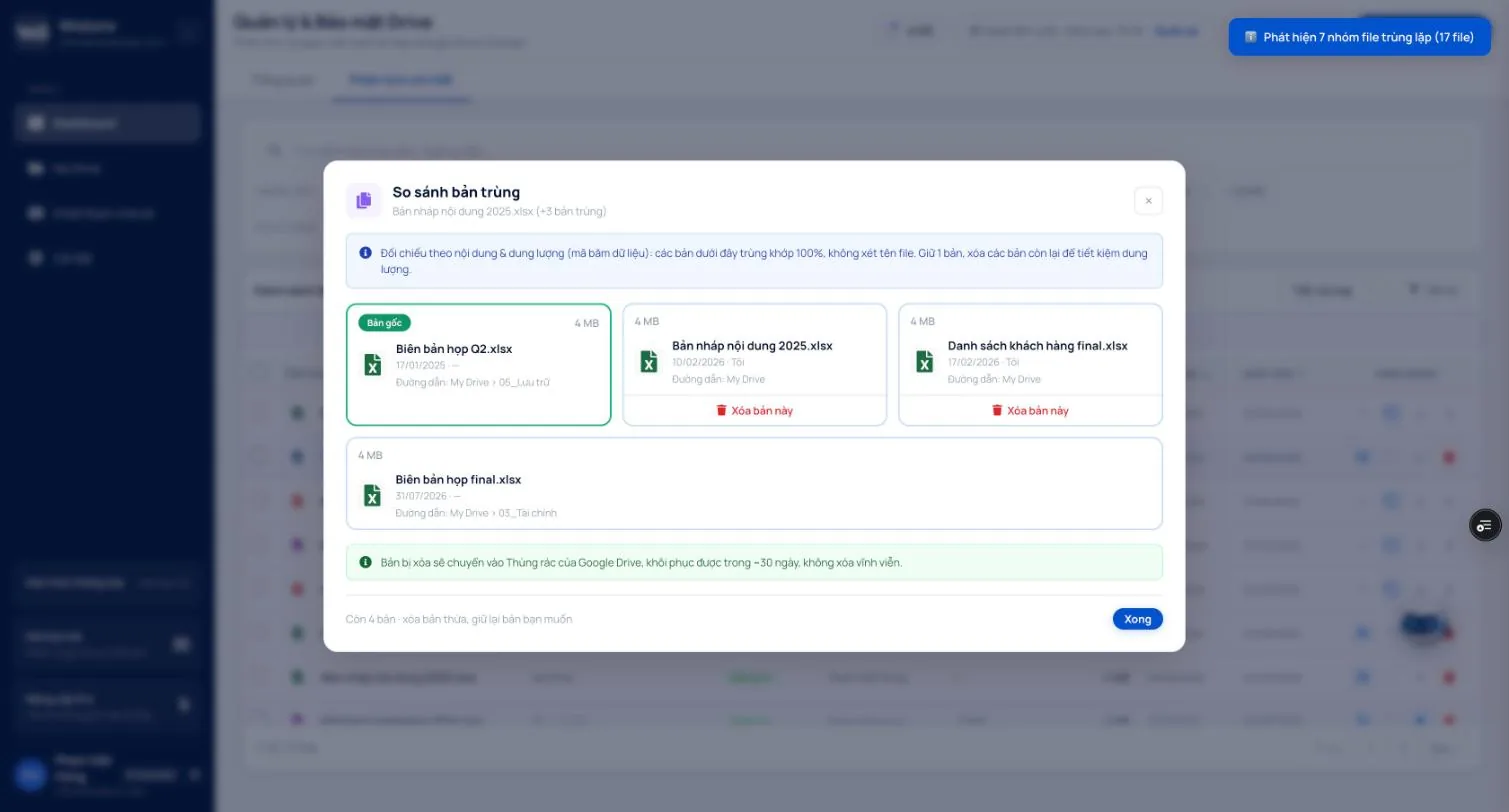
Deleted copies are moved to the Google Drive Trash, not deleted permanently. You can restore them within 30 days. How to restore is covered in the article on recovering deleted Google Drive files.
Delete copies in bulk
Once you are sure, the Delete copies (Xóa bản sao) button on the Duplicates card handles the copies in many groups in one go. Before it runs, Wistorix shows a Process N files? (Xử lý N tệp?) confirmation with the number of files to be processed and a This month's limit (Hạn mức tháng này) bar. Click Process N files now (Xử lý N tệp ngay) to run it or Cancel (Huỷ) to go back.
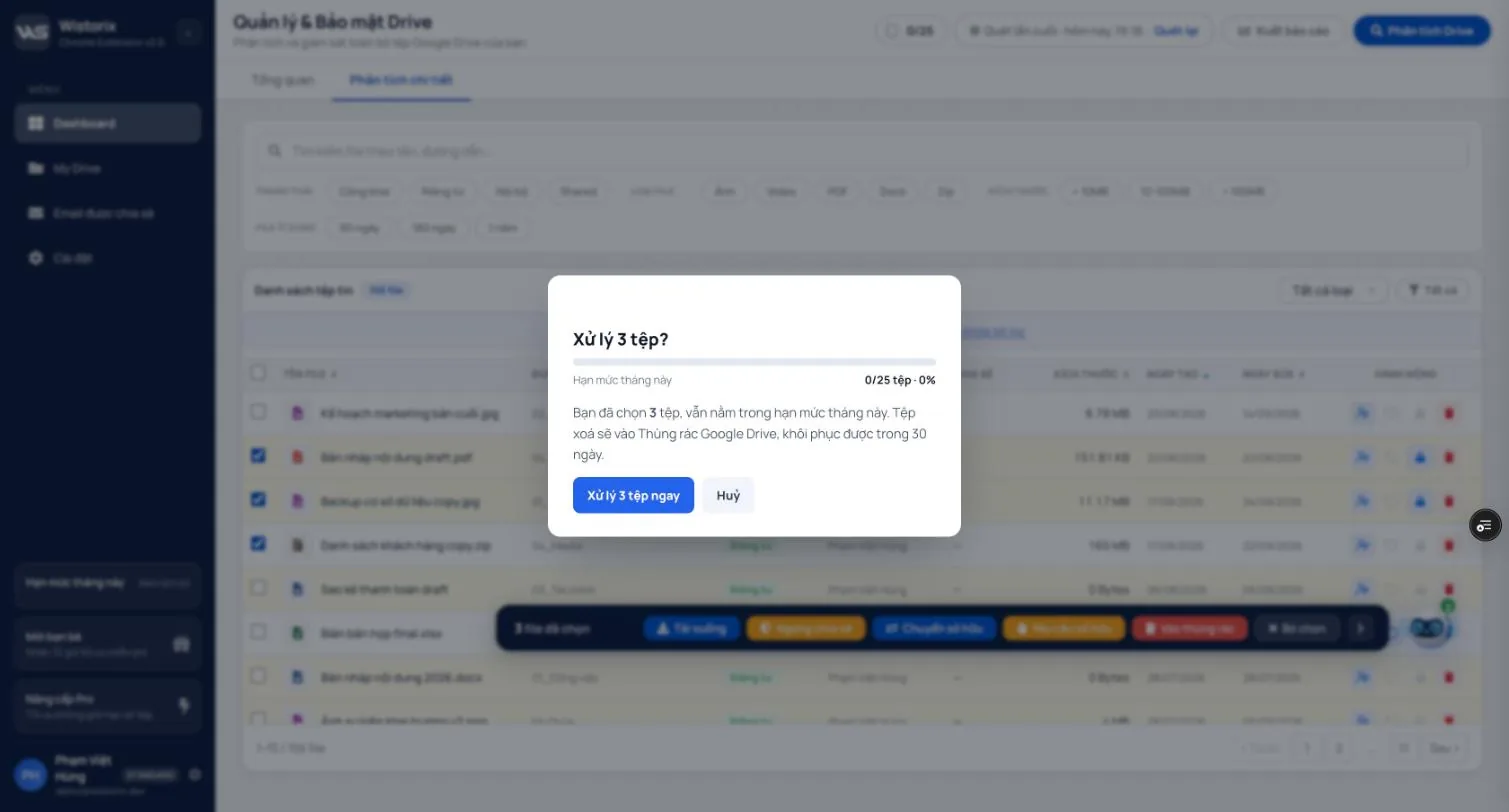
Each file processed uses 1 optimization credit. If you have more extra copies than your remaining limit, start with the groups that take up the most storage. Limit details are in Part 11.
Check before you delete
- Sharing status: a copy shared with a client or coworker may be the one they open. Deleting it breaks their link.
- Owner: you can only delete files you own. Duplicates owned by someone else are left untouched.
- Photos and videos: these usually take up the most storage in duplicate groups. A dedicated tool for photos is on the duplicate photo finder page.
When you finish, click Scan again (Quét lại). The Duplicates group in the Points deducted column goes down to match.
Frequently asked questions
Are two files with different names treated as duplicates?
Yes, if their contents are identical. Wistorix matches files by their data checksum and ignores file names.
Can I restore a duplicate after deleting it?
Yes. Deleted copies go to the Google Drive Trash, where you can restore them within 30 days.
Can I delete duplicates owned by someone else?
No. You can only delete files you own. Copies owned by others are left as they are.
Applies to: Wistorix Dashboard v2.0 (Chrome Extension v2.0) and Drive Widget 2.1, updated Oct 9, 2026. Screenshots and button names come from this version, whose interface is currently in Vietnamese. When a new Wistorix version ships, we write a new guide and record the changes in the changelog.