

This part shows you how to export reports from the Dashboard and from the Shared emails page, what a report contains, when to export and how to compare scans.
Export a report from the Dashboard
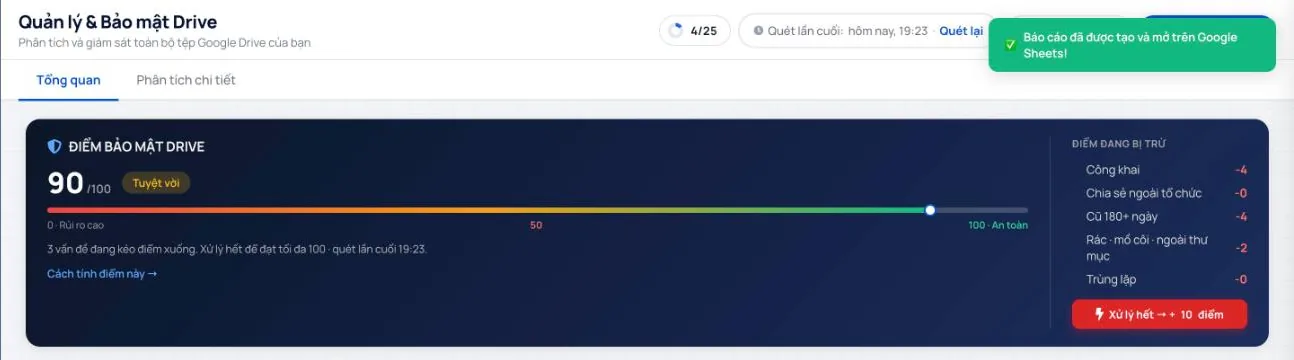
- Click Analyze Drive (Phân tích Drive) or Rescan (Quét lại) so the data is up to date. The scan time appears under Last scanned.
- Click Export report (Xuất báo cáo) in the top bar.
- Wistorix creates a new spreadsheet in Google Sheets for the signed-in account and opens it. A notification in the corner reads Report created and opened in Google Sheets! (Báo cáo đã được tạo và mở trên Google Sheets!)
Export a sharing access report
The Shared emails (Email được chia sẻ) page has its own Export report button at the top right. Use it when you need a list of who has access to your files, for example to send to a manager for approval before a bulk revoke.
What the report includes
The report holds the analysis results as a spreadsheet: administrative file information such as name, path, size, owner, sharing status and modified date. The report does not contain file content.
Because the report lives in your own Google Sheets, you can filter it, sort it, add a notes column or share it with colleagues like any other spreadsheet.
A note on sharing: the report lists file names and the emails files are shared with. Share the report only with people who need to see it, and do not turn on access for anyone with the link.
When to export a report
| Situation | Use the report to |
|---|---|
| An employee leaves | List the files they own and build a handover record |
| A client project ends | Check the files delivered against the access the client still has |
| Quarterly security review | Keep a snapshot of sharing status before and after you act |
| Before a large storage cleanup | Keep a list of the files you will delete so you can look them up later |
Compare scans over time
- Export a report before you make changes.
- Handle public files, external emails and duplicates.
- Click Rescan, then export a report again.
- Put the two spreadsheets side by side and compare the number of public files and external emails.
Exporting reports is part of the free features and does not use optimization credits. See also the export Google Drive file list page and the article on Google Drive handover.
Frequently asked questions
Does the report include file contents?
No. The report only contains management details such as name, size, owner and sharing status.
Does exporting a report use optimization credits?
No. Exporting reports is part of the free features.
Applies to: Wistorix Dashboard v2.0 (Chrome Extension v2.0) and Drive Widget 2.1, updated Oct 9, 2026. Screenshots and button names come from this version, whose interface is currently in Vietnamese. When a new Wistorix version ships, we write a new guide and record the changes in the changelog.