

This part covers transferring ownership in bulk, requesting ownership back, the Google limits you need to know and how to do it right on the open file with Drive Widget 2.1.
Why transfer ownership
In Google Drive, a file belongs to the person who created it. When that person leaves and their account is deleted, their files can go with it, even files the whole team relies on. Transferring ownership to the person taking over before the account is closed is how you keep the data.
Wistorix has two opposite actions, both in the Actions column and on the bulk action bar:
- Transfer ownership to someone else: you are the owner and hand files over to another person.
- Request ownership back to you: someone else is the owner and you ask to receive the files.
Google limits to know first
| Account type | How the transfer works |
|---|---|
| Same Google Workspace organization | Transfers immediately. The recipient becomes the owner right away |
| Personal Gmail | The owner sends an invitation. Ownership moves only after the recipient accepts |
| Different Workspace organization | Google does not allow a direct transfer. Make a copy that you own instead |
| Files in a shared drive | Cannot be transferred, because the files belong to the organization, not to a person |
Details from Google: Make someone else the owner of your file.
Transfer ownership on the Dashboard
- Open My Drive or the Detailed analysis tab and check the files to transfer.
- Click Transfer ownership (Chuyển sở hữu) on the bulk action bar, or the transfer icon at the end of a row.
- The Transfer ownership (Chuyển quyền sở hữu) dialog shows how many files will be transferred and the current owner. Enter the New owner email (Email chủ sở hữu mới).
- Add a Message (Lời nhắn) if you like (optional, up to 500 characters), for example the reason for the handover.
- Click Transfer (Chuyển quyền), then confirm.
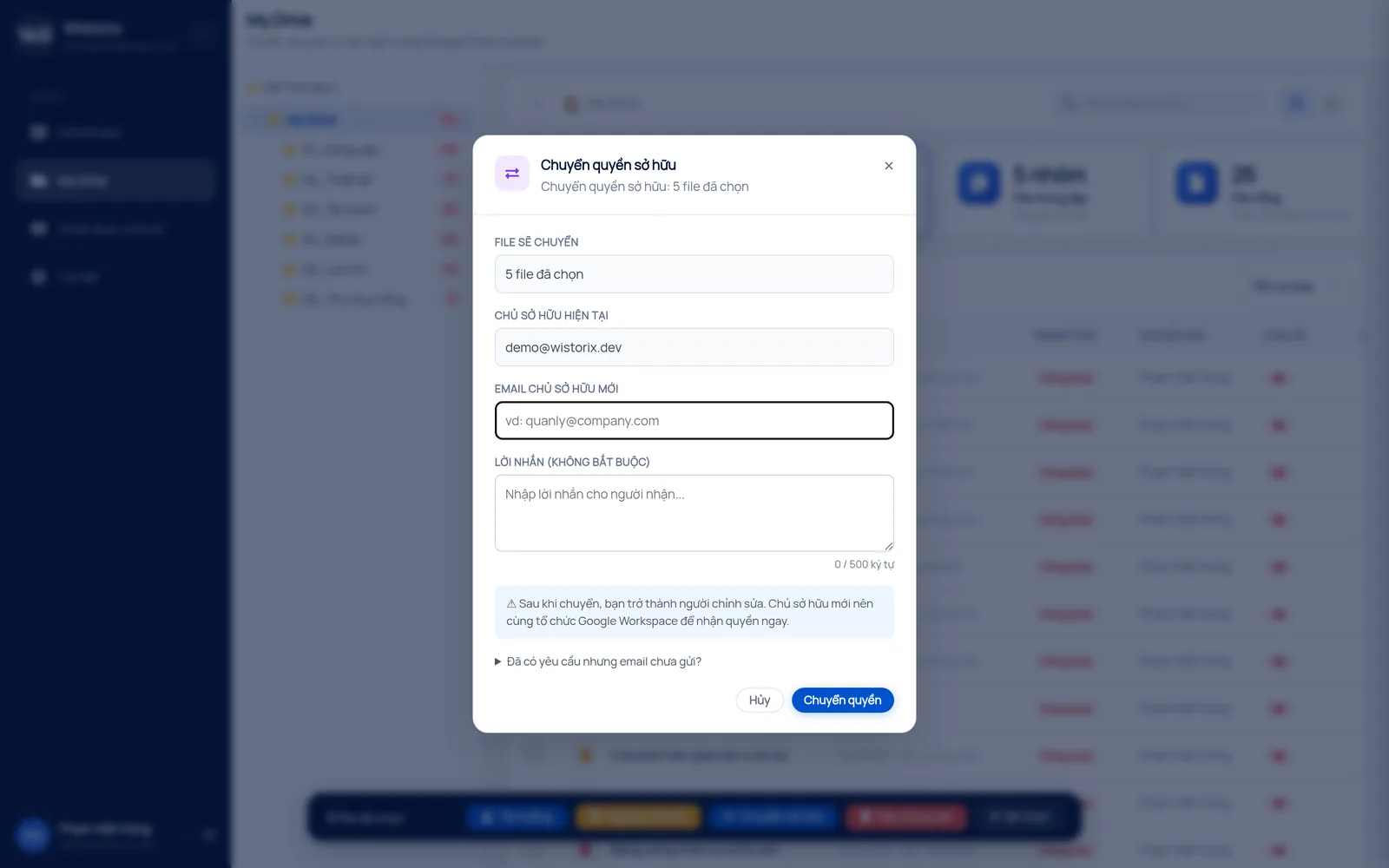
After the transfer, you become an editor of the file. A recipient on personal Gmail has to accept the invitation before the transfer is complete. The line Request sent but the email did not arrive? (Đã có yêu cầu nhưng email chưa gửi?) in the dialog lets you resend it when the recipient has not seen the invitation.
Request ownership back to you
- Filter for files owned by other people (Owner column) that you are responsible for.
- Click Request ownership (Yêu cầu sở hữu) on the bulk bar, or the request icon at the end of a row.
- Confirm in the Process N files? (Xử lý N tệp?) dialog. The request is sent to the current owner.
- Ownership moves only when the owner agrees. Then you accept the invitation to become the owner.
A dedicated guide for this action: request ownership in Google Drive.
Do it right on the open file with Drive Widget 2.1
Drive Widget 2.1 puts ownership actions right next to the Google Docs, Sheets or Slides file you have open, with no need to go to the Dashboard. Click the Wistorix bubble or the Wistorix icon in the Chrome toolbar to open the panel. On the quick action bar, the crown button changes its label to fit the situation:
| Button label | When | What it does |
|---|---|---|
| Request access (Xin quyền) | The file is owned by someone else | Edit the message and click Send transfer request (Gửi yêu cầu chuyển quyền): Wistorix opens a prefilled Gmail window with the file link to send to the owner. Or choose Make a copy you own (Tạo bản sao do bạn sở hữu) |
| Transfer | The owner opens the request link and has Wistorix installed | The panel already shows the person asking for ownership. Click Transfer and confirm |
| Accept (Nhận về) | You have been offered ownership | Click Accept ownership (Nhận quyền sở hữu). The previous owner keeps edit access |
| Owned (Sở hữu) | The file is yours | Transfer ownership to someone who already has access or to another email, or cancel a pending offer |
When you are viewing a folder, the panel shows a yellow line N items owned by others (N mục do người khác sở hữu) with a button to accept, in bulk, the items waiting for you.
The 2.1 panel also has two tabs: Lock down (Bảo mật): sharing status, people with access and duplicates of the selected file. With no file selected, it shows the folder's safety score and the Needs attention list. Performance (Hiệu quả): an activity summary, 30-day, 90-day and 12-month charts, and the people who interact the most.
Process when an employee leaves
- Sign in to Wistorix with the departing employee's account (or ask them to do it) and scan the Drive.
- Filter the files they own and select the ones to keep.
- Bulk transfer ownership to the person taking over.
- Revoke access for external emails that are no longer involved (Part 08).
- Export a report to keep as a handover record (Part 10).
The full checklist is in transfer Google Drive file ownership when someone leaves and on the bulk transfer ownership page.
Frequently asked questions
Can personal Gmail accounts transfer ownership?
Yes, but the recipient must accept the invitation before ownership moves. Within the same Workspace organization, the transfer is immediate.
What access do I keep after the transfer?
You become an editor. The new owner can keep or remove your access.
Can files in a shared drive be transferred?
No. Files in a shared drive belong to the organization, so there is no individual owner to transfer from.
Applies to: Wistorix Dashboard v2.0 (Chrome Extension v2.0) and Drive Widget 2.1, updated Oct 9, 2026. Screenshots and button names come from this version, whose interface is currently in Vietnamese. When a new Wistorix version ships, we write a new guide and record the changes in the changelog.