

This part shows you how to add Wistorix to Chrome, sign in with your Google account and understand exactly which Google Drive permissions the extension asks for. It ends with a tour of the Dashboard layout so you know where everything is.
What you need
- A computer with the Chrome browser (Windows, macOS or ChromeOS). Wistorix is a Chrome extension, so it does not run on phones yet.
- The Google account that holds the Drive you want to review. It works with personal Gmail and Google Workspace accounts, and you do not need admin rights.
- About 10 minutes for the install and your first scan.
Tip: if you have several Google accounts, sign in to Chrome with the account that holds the most files. Wistorix works with the account you choose at the sign-in step, and each account has its own scan results.
Add the Wistorix extension to Chrome
- Open the wistorix.com home page in Chrome on your computer and click Install for free (Cài miễn phí).
- In the Chrome dialog, click Add extension to confirm.
- Click the puzzle piece icon next to the address bar, find Wistorix and click the pin icon so Wistorix always shows on the toolbar.
- Click the Wistorix icon to open the sign-in screen.
Installing is completely free. To manage, turn off or remove extensions, see Chrome's guide to managing extensions.
Sign in with your Google account
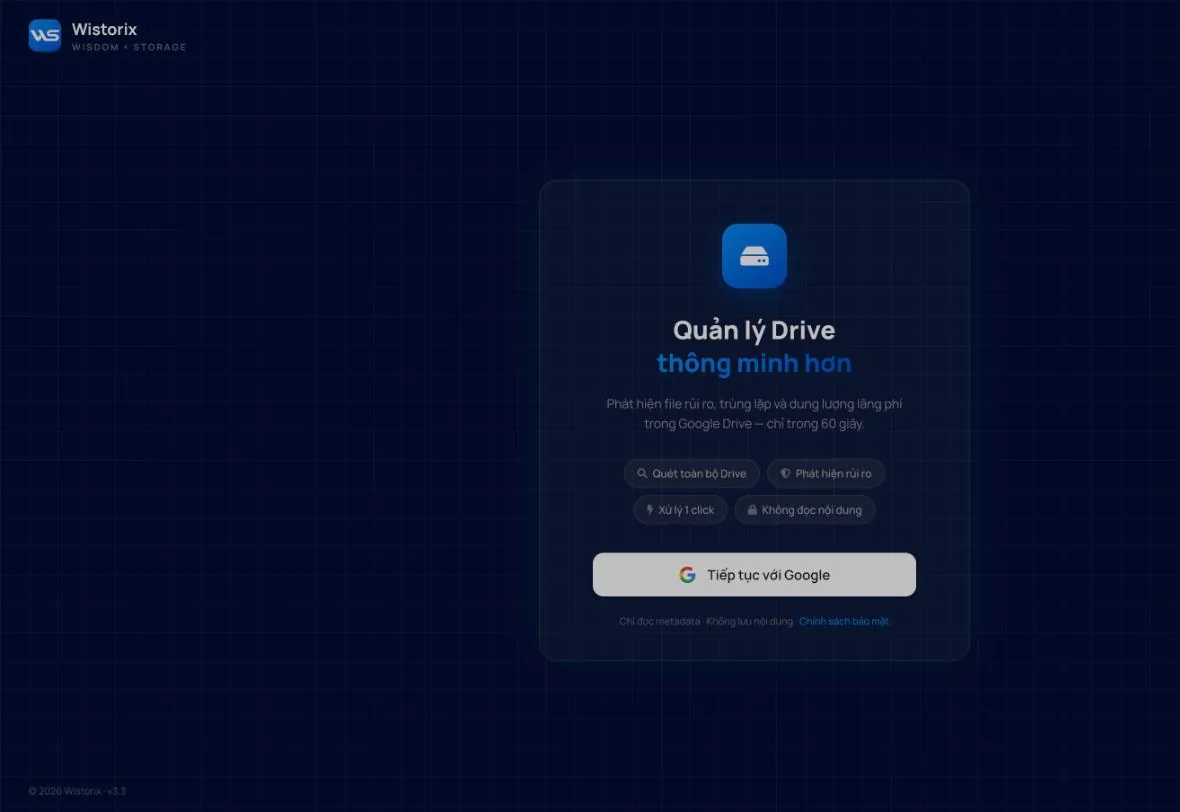
- Click Continue with Google (Tiếp tục với Google).
- Choose the Google account that holds the Drive you want to review.
- Google shows a consent screen that lists the Google Drive permissions Wistorix is asking for. Read it carefully, then click Allow.
- Wistorix takes you to the Dashboard and starts the first analysis of your Drive.
What permissions Wistorix asks for, and why
Wistorix needs access to Google Drive to read your file list and carry out exactly the actions you choose: stop sharing, revoke access for an email, transfer ownership, move files to the Trash. The extension only reads the management details of your files:
| Wistorix reads | Wistorix does not |
|---|---|
| File name, type and size | Download file contents to its servers |
| Owner, people the file is shared with, access level | Revoke or delete anything before you click confirm |
| Created date, modified date, parent folder | Send emails to the people you share with on your behalf |
You can remove Wistorix's access at any time on the third-party access page in your Google Account. Your files on Drive are not affected when you do.
Two places to work: the Dashboard and the Drive Widget
This version has two interfaces that share the same account:
- Dashboard (v2.0): the full management page, opened in a Chrome tab. The left menu has Dashboard, My Drive, Shared emails (Email được chia sẻ) and Settings (Cài đặt). Most of this guide works in the Dashboard.
- Drive Widget (2.1): the Wistorix bubble in the bottom right corner of drive.google.com and of any open Google Docs, Sheets or Slides file. Click the bubble or the Wistorix icon on the Chrome toolbar to open a side panel next to the page, with two tabs: Security and Efficiency. Details are in Part 09.
Dashboard layout
The top left corner shows the version you are using, which in this release is Chrome Extension v2.0. The bottom left corner has three small cards and your account details:
- This month's limit (Hạn mức tháng này): the number of files optimized this month. Click View history (Xem lịch sử) to open the Optimization credits page.
- Invite friends (Mời bạn bè): the referral program for earning extra free optimization credits.
- Upgrade to Pro (Nâng cấp Pro): for when you need to optimize more files than your limit allows.
- Your name, email and current plan label (for example STANDARD). Check the email here before every cleanup session to make sure you are working in the right account.
Next step: read the Dashboard and your security score in Part 02.
Frequently asked questions
Does Wistorix work with a personal Gmail account?
Yes. Wistorix works with personal Gmail and Google Workspace accounts, and you do not need admin rights.
Does Wistorix read the contents of my files?
No. Wistorix only reads management details such as name, size, owner, sharing permissions and modified date. File contents are never downloaded.
Does it cost anything to install Wistorix?
No. Installing, scanning your Drive and viewing the results are all free.
Applies to: Wistorix Dashboard v2.0 (Chrome Extension v2.0) and Drive Widget 2.1, updated Oct 9, 2026. Screenshots and button names come from this version, whose interface is currently in Vietnamese. When a new Wistorix version ships, we write a new guide and record the changes in the changelog.